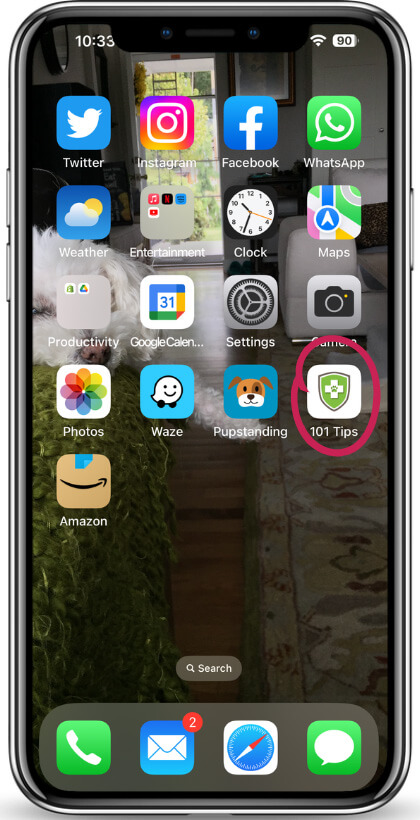
Add this icon to your home screen for easy access
This will also allow you to access the books offline.
* Installation differs from device to device, and depending on the browser you are using. If you are on a desktop or laptop computer, we strongly recommend using the Google Chrome browser for the best experience.
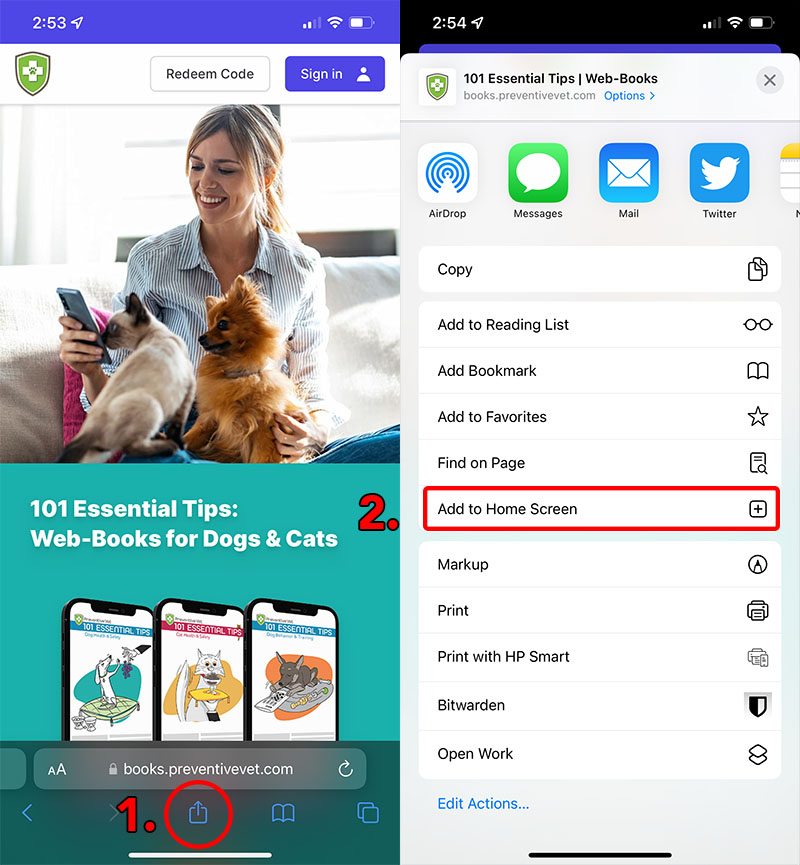
Safari - iOS (iPhone)
- On your iPhone, open Safari .
- Visit https://books.preventivevet.com and sign in to your account.
- Tap the share button .
Scroll down and tap 'Add to Home Screen' .
Chrome - Android
- On your Android device, open Chrome .
- Visit https://books.preventivevet.com and sign in to your account.
- Tap the three-dot menu button .
- Scroll down and tap 'Add to Home Screen'
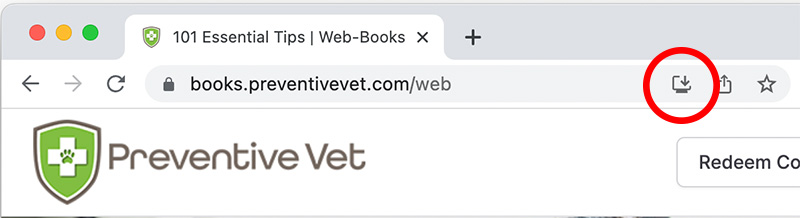
Chrome - MacOS or Windows
- On your computer, open Chrome , (not in Guest Mode).
- Visit https://books.preventivevet.com and sign in to your account.
- At the top right of the address bar, click Install .
Follow the onscreen instructions to install a shortcut link to your computer.
Additional Tips - Windows
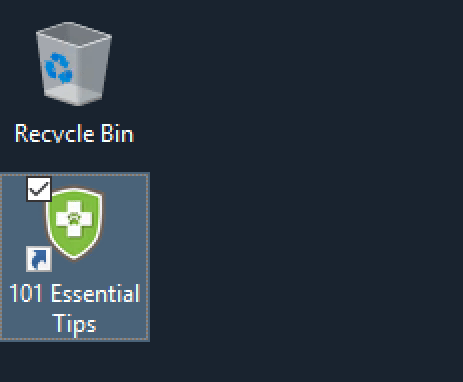
After installing the offline version, a shortcut is typically made available on your desktop.
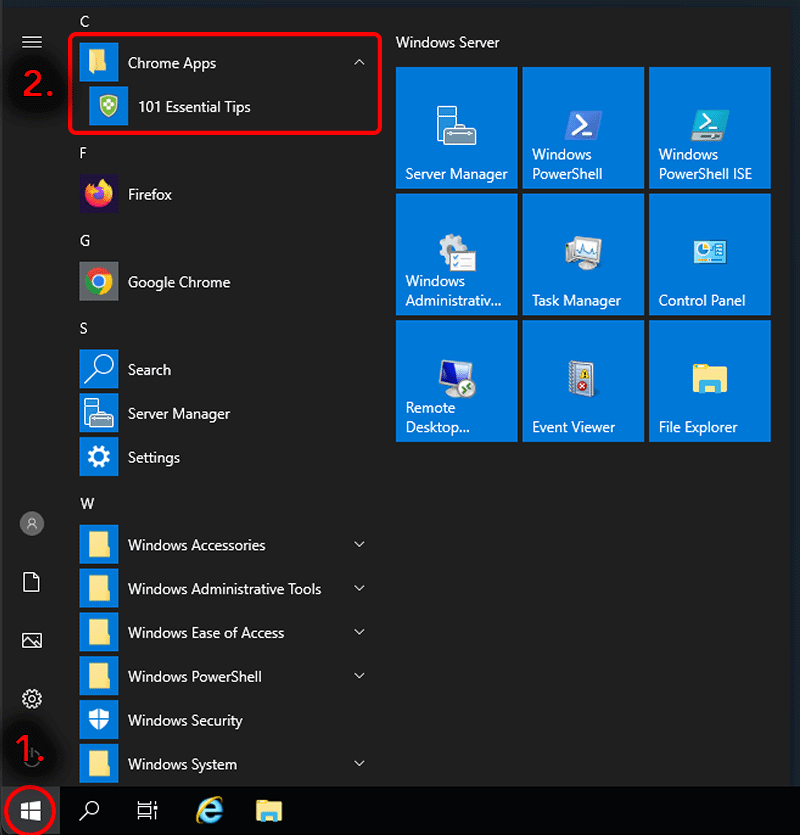
The application is also available by clicking the Windows start button, and opening up the Chrome Apps folder. * Note: On Windows 11, it may be easiest to begin typing '101 Essential Tips' in the searchbar.
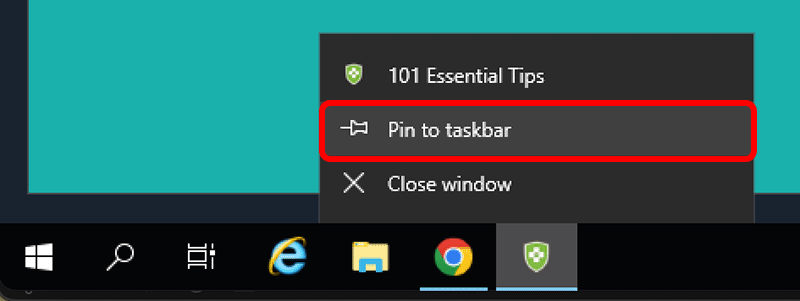
Lastly, while the application is open, it is possible to right-click the icon in the task bar, and choose 'Pin to task bar'.
Additional Tips - MacOS
- MacOS does not automatically create a desktop shortcut.
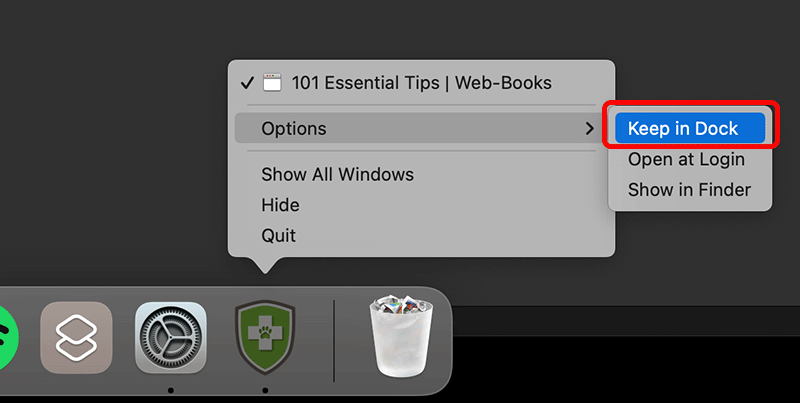
While the application is open, it is possible to right-click the icon in the dock and choose Options > Keep in Dock.
Another option is to go to select Go > Home from Finder.
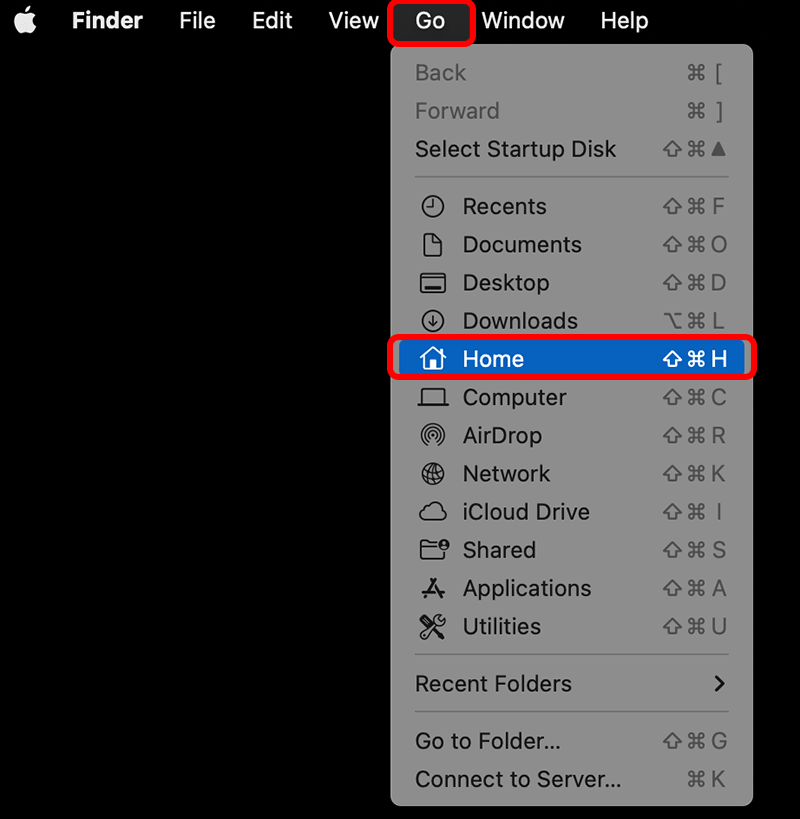
In the new Finder window, navigate to Applications > Chrome Apps where you will find the app.

You can choose to launch it here, or drag it to another convenient location such as your Desktop.